
Prompt Notebooks
This section describes how to use Prompt Notebooks and Prompt Playground. Prompt Notebooks are persistent workspaces for developing prompts and running experiments. They provide a flexible environment where you can iterate on prompts, configure experiments, and track your work over time. This guide helps you understand how to use notebooks for prompt development and experimentation.
Overview
A Prompt Notebook is a workspace that stores your prompt development state and experiment configurations. Notebooks operate in two modes: Iteration Mode for rapid prompt development, and Experiment Mode for systematic testing. When you run an experiment from a notebook, the notebook's current state becomes the experiment's configuration, and the experiment is tracked in the notebook's history.
Core Concepts
1. Notebook
A notebook is a persistent container that stores your work. It has:
- Name and description: Metadata to help you organize your work
- State: The current draft configuration (prompts, variables, dataset, evaluators, mappings)
- Experiment history: A record of all experiments run from this notebook
- Note: Notebook changes are automatically saved as you work, so you can close and return to your work later.
Notebooks allow you to:
- Develop and test prompts without losing your work
- Iterate on experiment configurations
- Track the evolution of your prompts over time
- Run multiple experiments from the same configuration
2. Notebook State
A notebook's state is its current draft configuration. The state can include:
- Prompts: One or more prompts (saved or unsaved) you're working with
- Variable mappings: How variables are filled (manually in Iteration Mode, from dataset columns in Experiment Mode)
- Dataset: The test data to run prompts against (optional - required for Experiment Mode)
- Evaluators: Automated tests to score prompt outputs (optional - required for Experiment Mode)
- Eval variable mappings: How variables map to evaluators (optional)
- Row filters: Conditions to test on a subset of dataset rows (optional)
- Key Point: When you run an experiment from a notebook, the notebook's current state becomes the experiment's configuration. This means you can modify the notebook state, run an experiment, modify it again, and run another experiment - each experiment captures the state at that moment.
- Example:
A notebook state might contain:
- Prompt: "Answer this question: question"
- Variable mapping:
question→ dataset columnuser_query - Dataset: "Customer Questions v2"
- Evaluator: "Answer Correctness"
- Eval mapping:
response→ experiment output,expected_answer→ dataset columncorrect_answer
When you click "Run Experiment", this entire state becomes the configuration for a new experiment.
3. Iteration Mode
Iteration Mode is for rapid prompt development and testing. In this mode:
- State contains: Only prompts (no dataset or evaluators)
- Variable handling: You manually fill in variable values when testing prompts
- Purpose: Quick iteration on prompt design without running full experiments
- Run behavior: Execute prompts directly with manual inputs - no experiment is created
- Best for:
- Developing new prompts
- Testing prompt variations quickly
- Refining prompt wording and structure
- Exploring different approaches before committing to an experiment
- When to use: Use Iteration Mode when you're focused on prompt development and don't need systematic evaluation yet.
4. Experiment Mode
Experiment Mode is for systematic testing and evaluation. In this mode:
- State contains: Complete experiment configuration (prompts, dataset, evaluators, all mappings)
- Purpose: Run formal experiments against datasets with automated evaluation
- Run behavior: Creates a Prompt Experiment that runs against your dataset
- Best for:
- Testing prompts on real data
- Comparing prompt versions systematically
- Measuring performance with evaluators
- Production-ready testing
- When to use: Use Experiment Mode when you have a dataset and want to run formal experiments with evaluation.
- Mode Detection: The notebook automatically switches to Experiment Mode when you add a dataset to the state. It switches back to Iteration Mode if you remove the dataset.
5. Experiment History
Each notebook maintains a history of all experiments run from it. This history shows:
- Experiment details: Name, status, timestamps, row counts, costs
- Chronological order: Most recent experiments first
- Quick access: Click any experiment to view its full results
Experiment history helps you:
- Track how your prompts have evolved
- Compare results across multiple runs
- Understand what changes improved performance
- Maintain a record of your experimentation process
Why Use Notebooks?
Notebooks provide a persistent workspace where you can develop prompts, iterate on configurations, and run multiple experiments. Unlike creating experiments directly, notebooks save your work automatically, allow you to switch between rapid iteration and systematic testing, and maintain a history of all experiments run from them.
Create Notebook Workflow
-
Navigate to the Prompt Notebooks page.
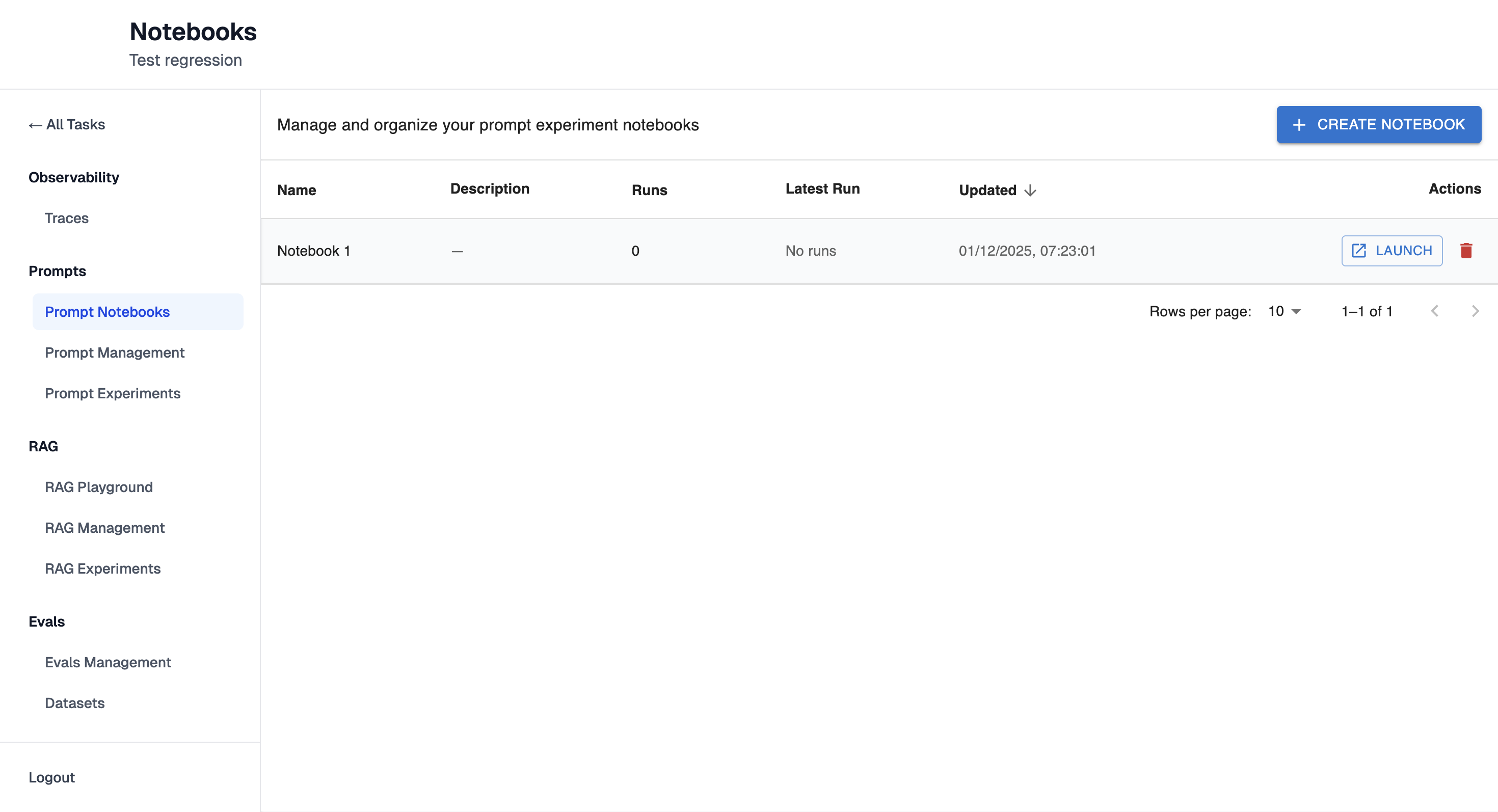
-
Click "Create Notebook" button. It will open configuration form:
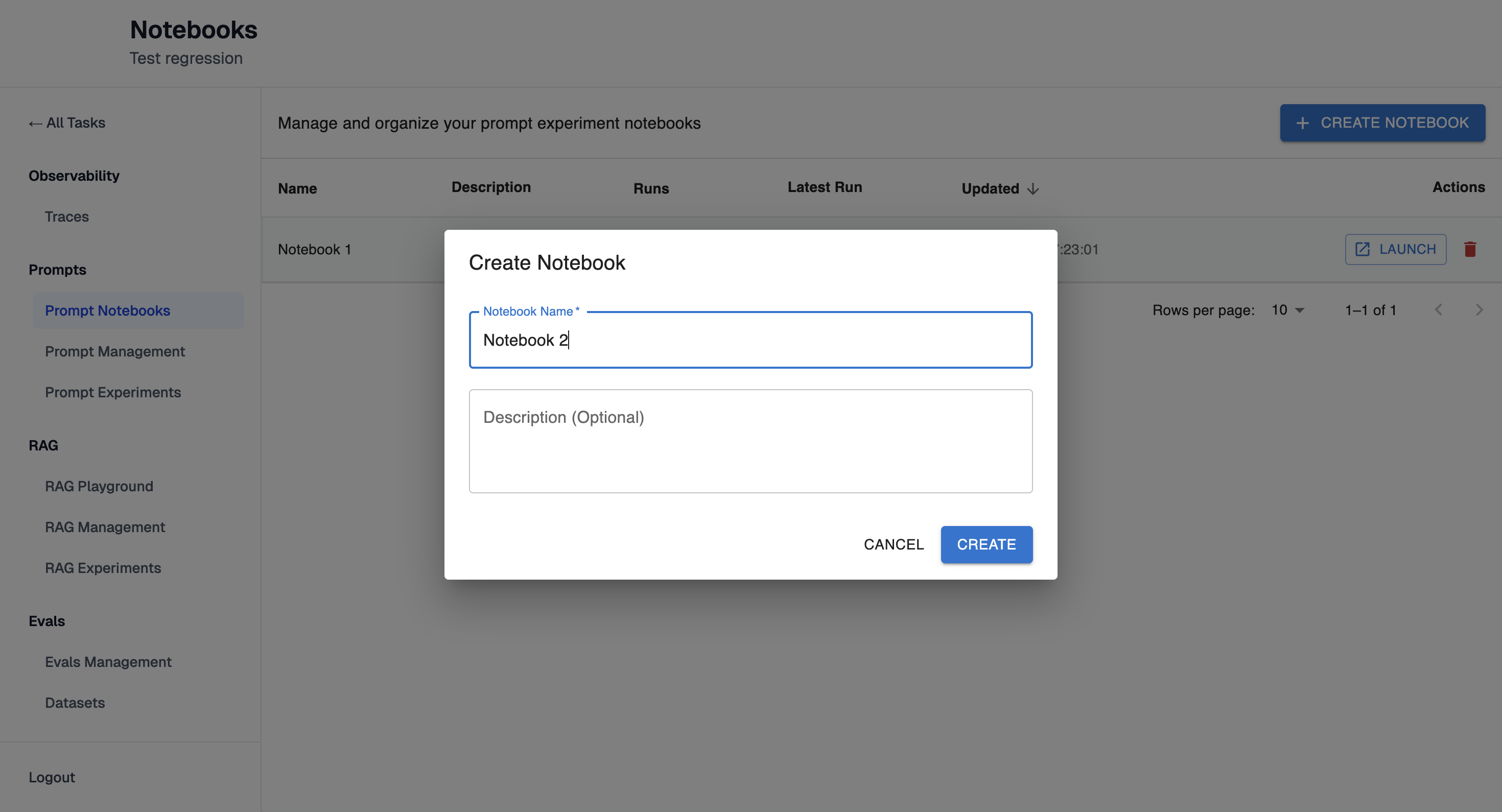
-
Enter a name and optional description.
-
Click on the Notebook name to take a look at Notebook details:
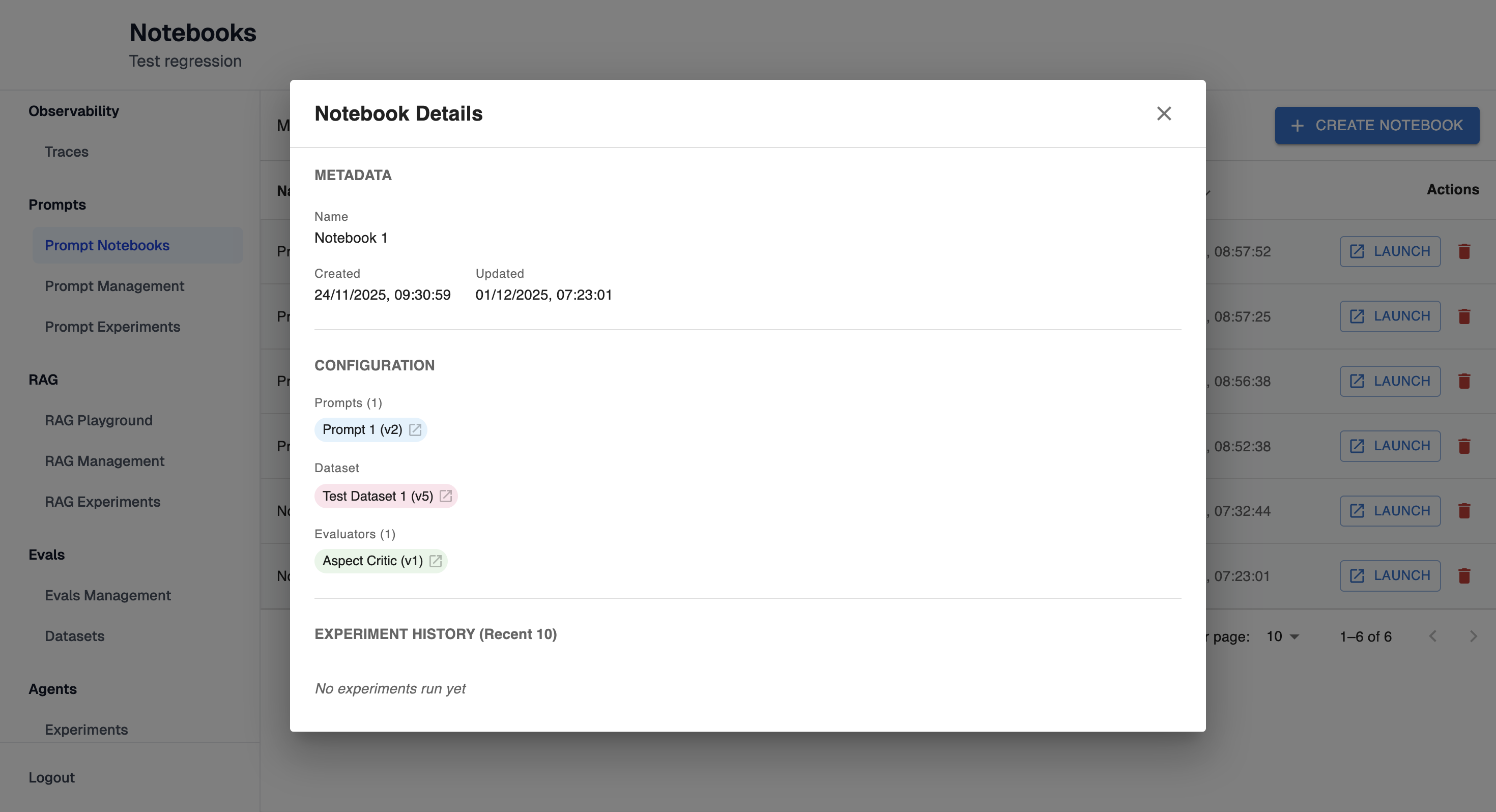
Prompt Playground
After creating new Notebook you will be redirected to Prompt Playground page where prompts can be created and saved:
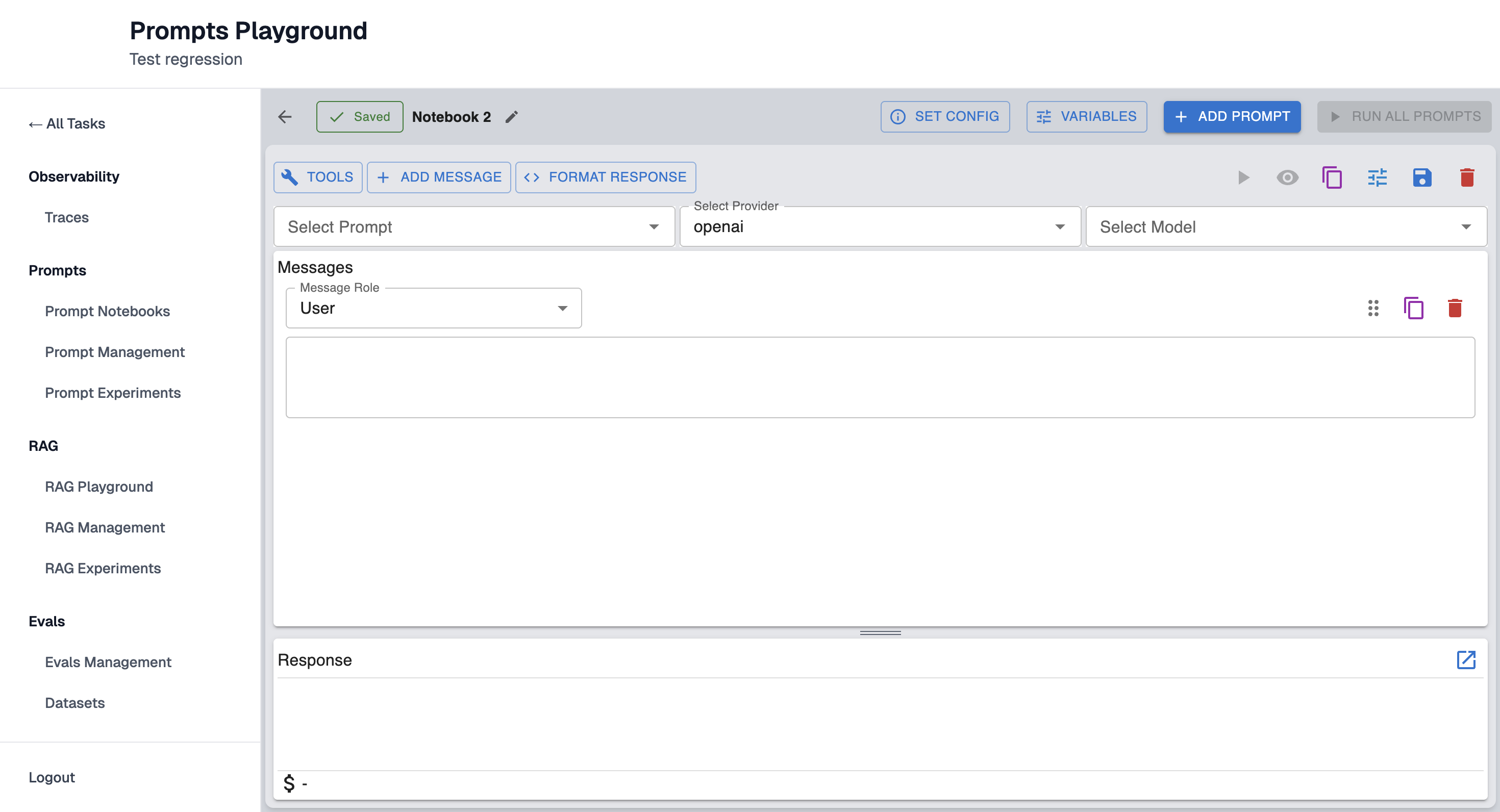
Step 1: Select Provider
See the guide Configure Model Provider.
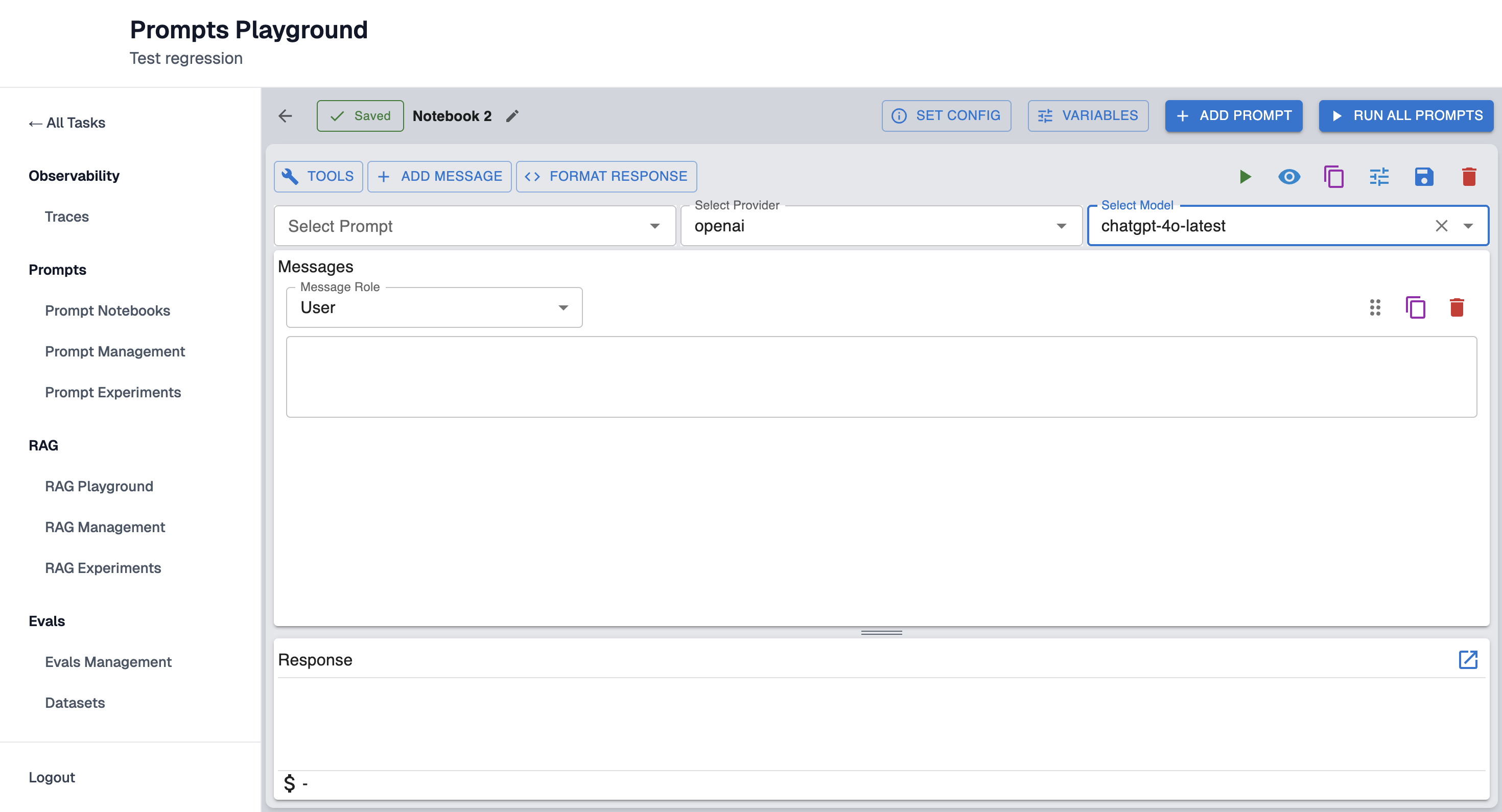
Select one of the providers for the prompt: openai, anthropic, google gemini.
Step 2: Select Model
Select one of the model version to test (e.g., chatgpt-4o-latest, gpt-3.5-turbo)
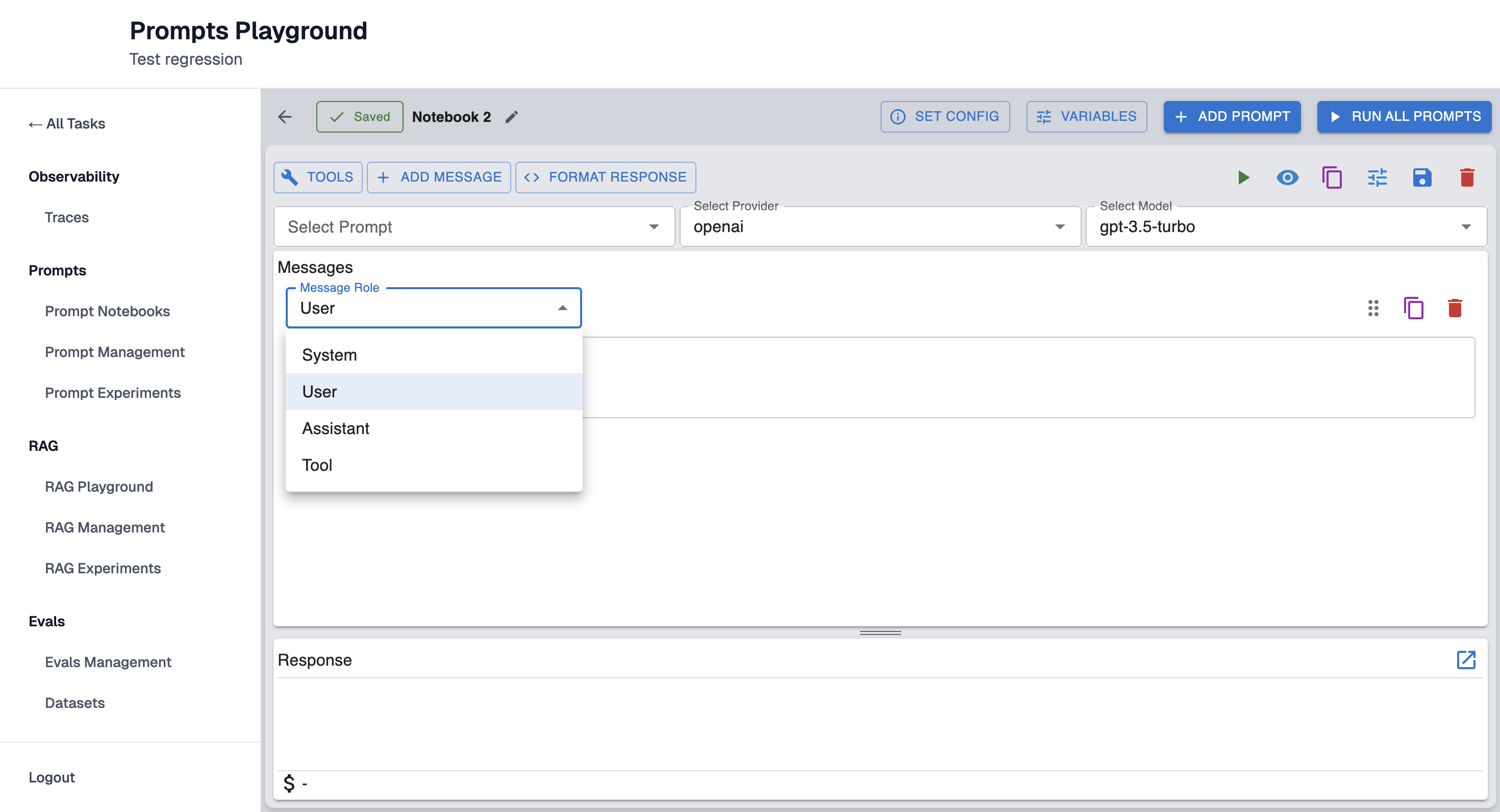
Step 3: Select Message Role
Select one of the Message Role: System, User, Assistant, Tool.
Step 4: Enter the Prompt Message
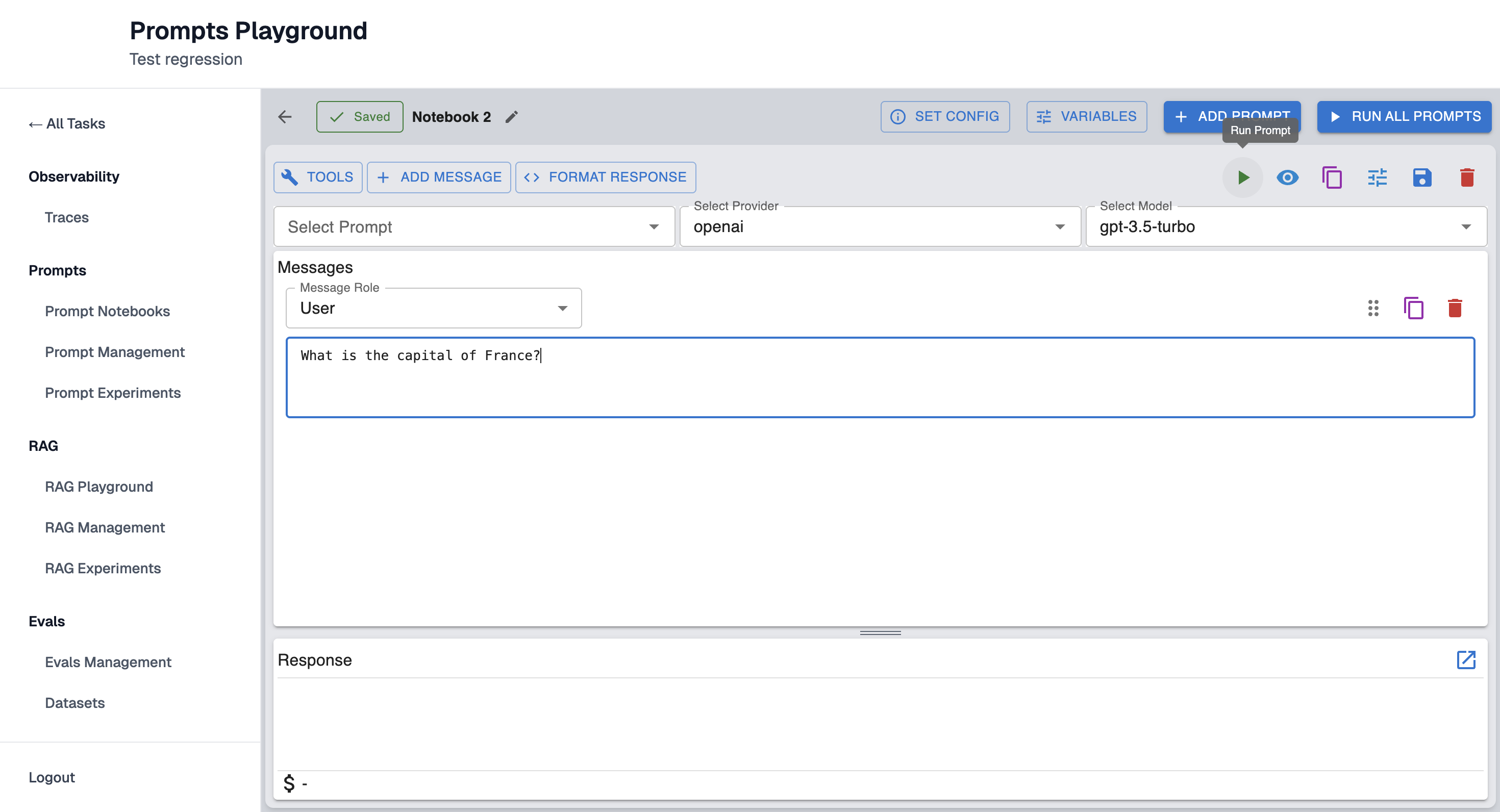
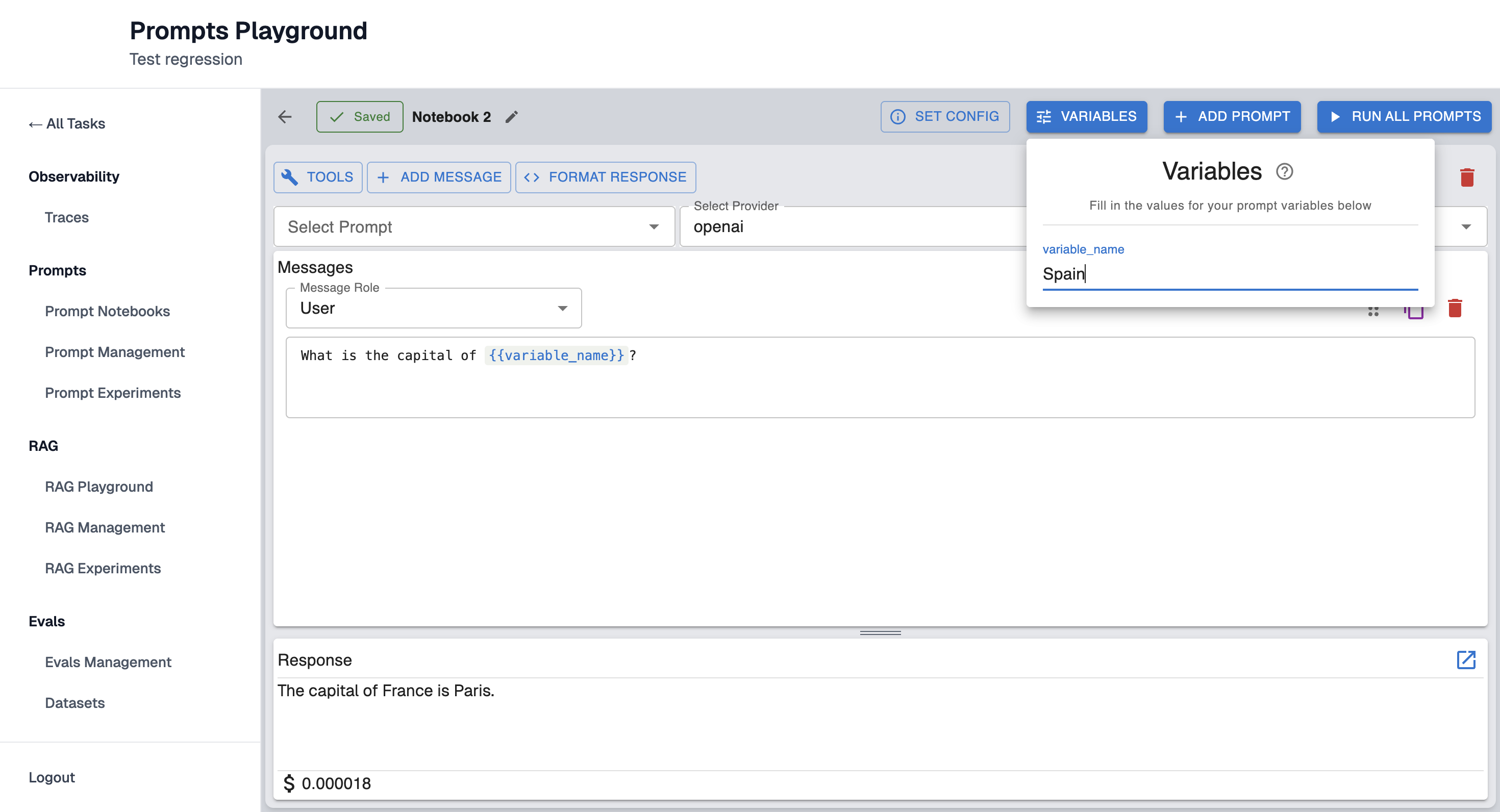
Use variables:
User message: "What is the capital of {{variable_name}}?"
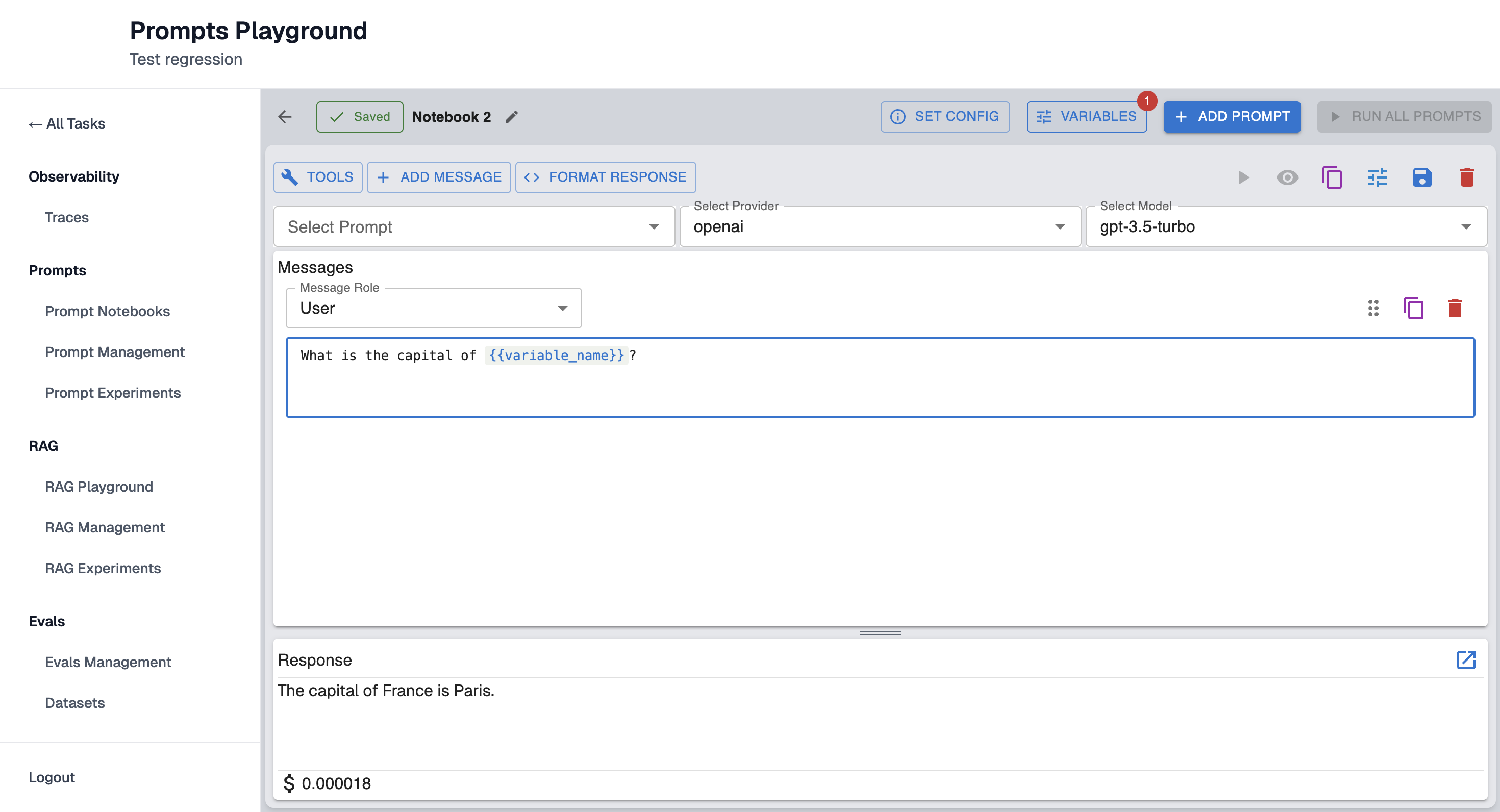
To run the prompt fill in the values for variables below:
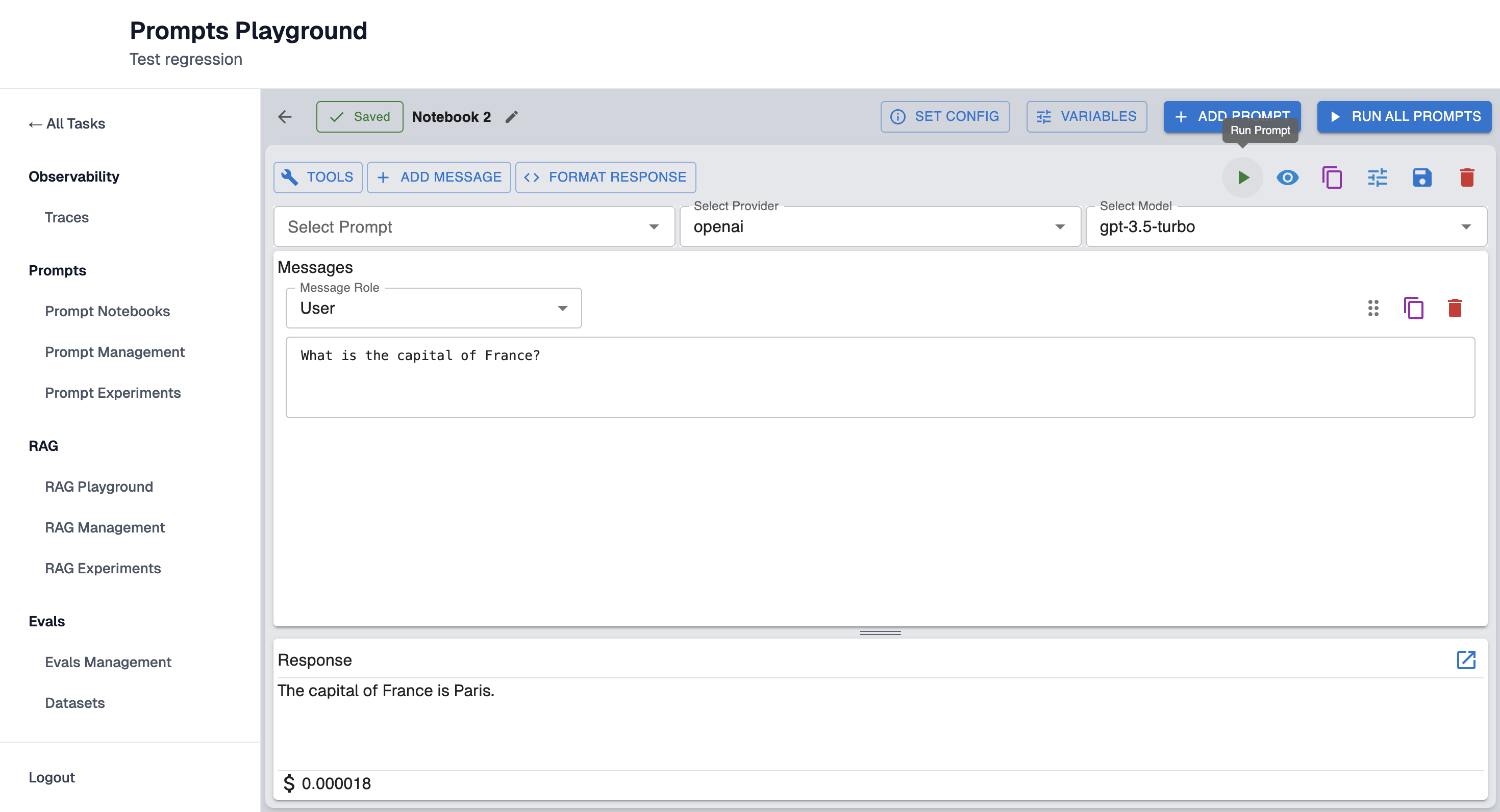
Step 5: Run Prompt
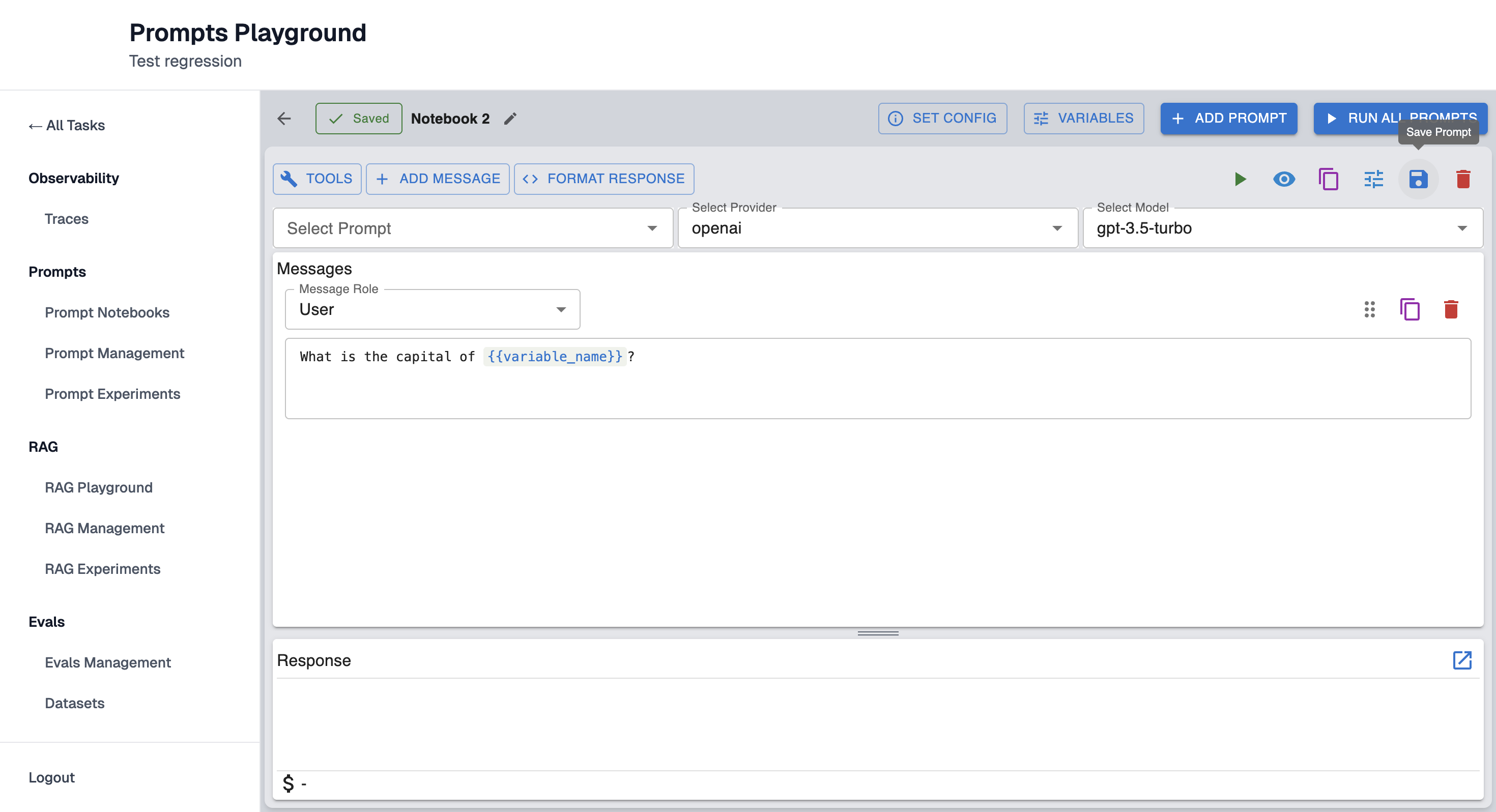
Step 6: Save Prompt
To save the prompt click on the second icon from the right:
Enter the name of the prompt:
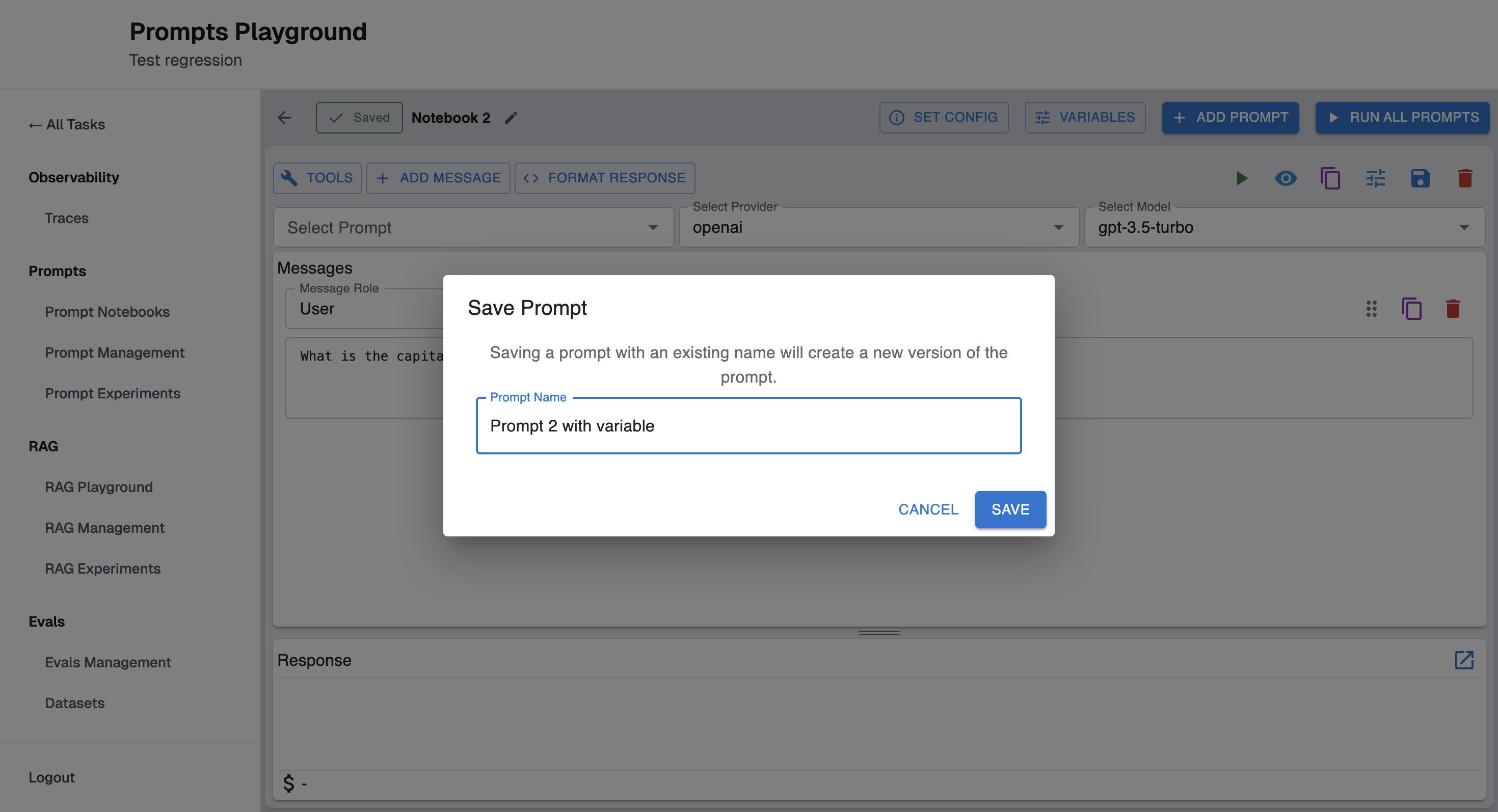
Note: Saving a prompt with an existing name will create a new version of the prompt.
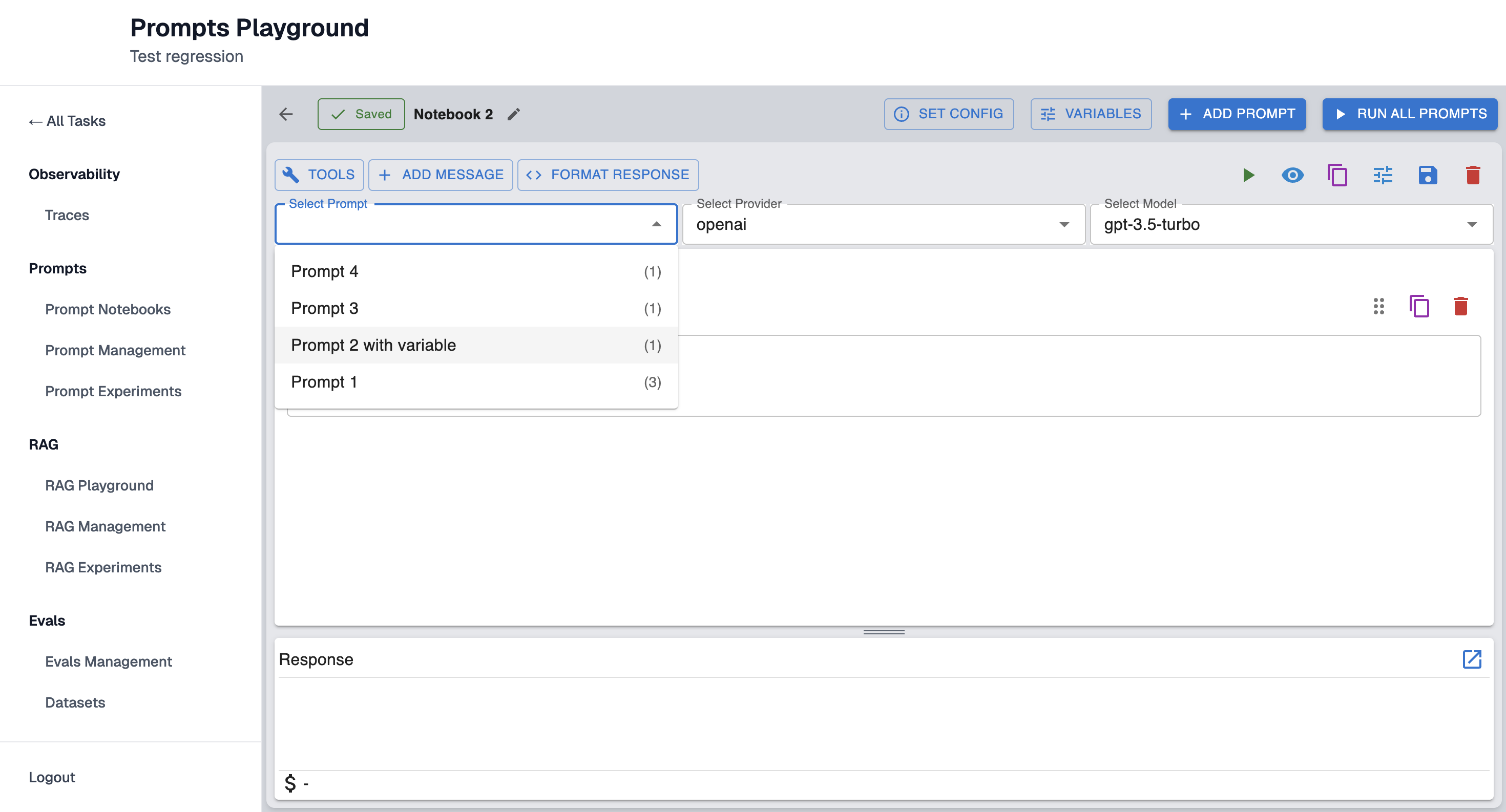
Saved prompts will appear in dropdown, as well as on Prompt Management page:
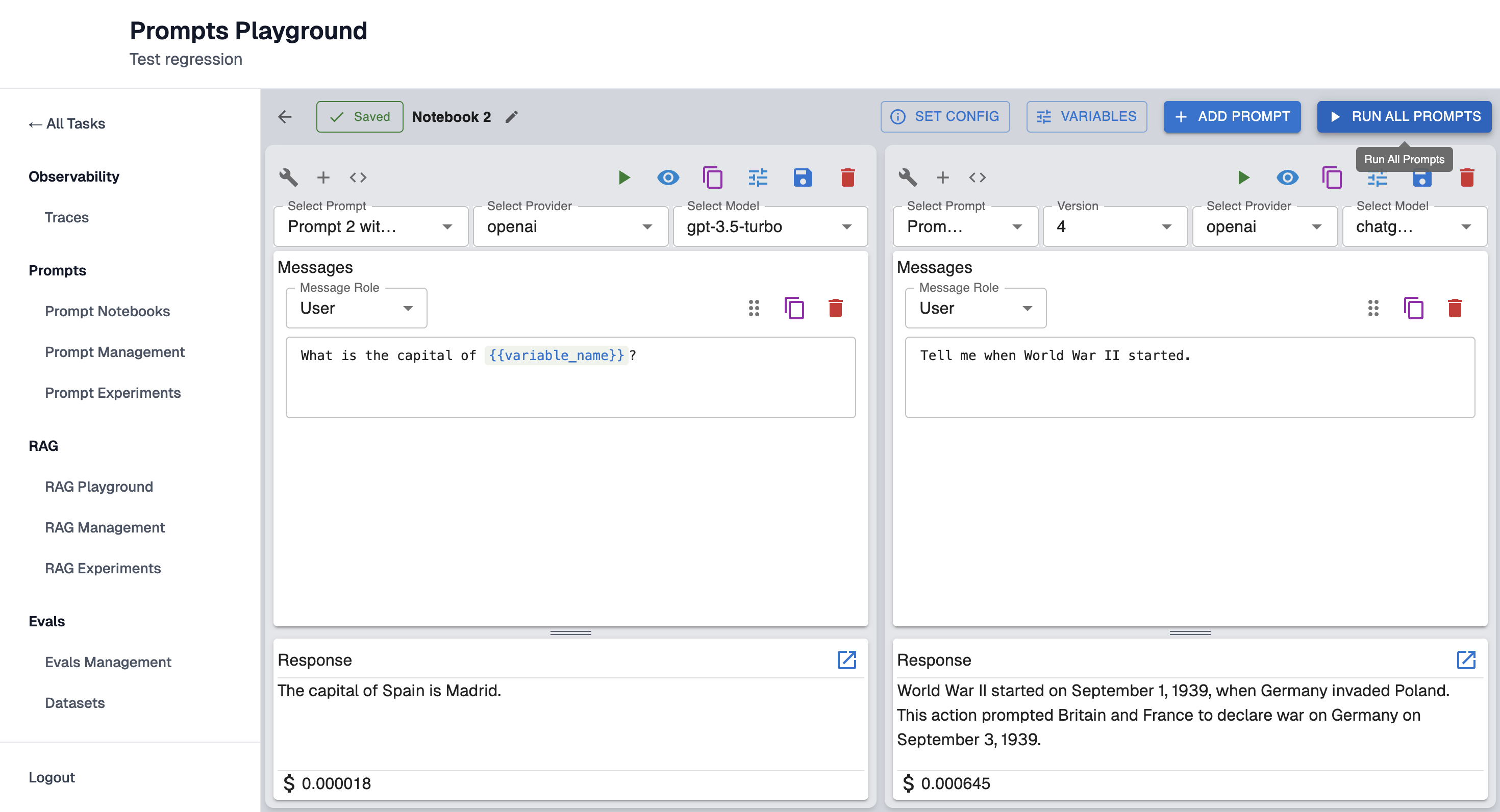
Run All Prompts
If there is more than one prompt you can click button "Run All Prompts" instead of clicking on every single one separately:
Updated 9 months ago