
LLM Evaluators
How do you create LLM-as-a-judge evaluators using custom prompts to automatically score model outputs? Arthur's LLM Evaluators let you define a judge prompt — a rubric written in natural language — that a capable LLM uses to score your agent's outputs on any dimension you care about: coherence, relevance, factual accuracy, tone, or anything else that rule-based metrics can't capture. This page walks you through creating your first evaluator, configuring score ranges, using Arthur's built-in templates, and wiring results into the continuous evaluation system.
Overview
Traditional metrics like exact match or BLEU score break down for open-ended LLM outputs. A response can be grammatically correct, semantically relevant, and still be factually wrong — or vice versa. LLM-as-a-judge solves this by using a second, high-capability model (the "judge") to evaluate outputs against a rubric you define.
Arthur supports two categories of LLM evaluators:
| Category | Description | Examples |
|---|---|---|
| Built-in LLM evaluators | Pre-built LLM-as-a-judge templates with optimized prompts | Aspect Critic, Answer Relevance, Context Recall, Goal Accuracy |
| Built-in ML evaluators | Model-based evaluators requiring no LLM prompt | PII, Toxicity, Prompt Injection |
| Custom evaluators | Your own judge prompts, score ranges, and pass/fail thresholds | Brand tone, Domain accuracy, Compliance |
Both types produce numeric scores that flow into Arthur's continuous evaluation system, trigger alerts, and appear in the dashboard alongside your trace data.
flowchart LR
    A[Agent Trace] --> B[Arthur Evaluator]
    B --> C{Evaluator Type}
    C -->|Built-in| D[Aspect Critic / PII / Toxicity]
    C -->|Custom| E[Your Judge Prompt]
    D --> F[Numeric Score]
    E --> F
    F --> G{Pass / Fail Threshold}
    G -->|Pass| H[Dashboard: Green]
    G -->|Fail| I[Dashboard: Alert + Red]
    H --> J[Continuous Eval System]
    I --> J
How LLM Evals Work
When an evaluator runs against a trace, Arthur:
- Extracts variables from the trace span — for example,
{{input}},{{output}}, and{{context}}— using Transforms you configure (see the Transforms guide). - Renders the judge prompt by substituting those variables into your prompt template.
- Sends the rendered prompt to the configured judge model (e.g., GPT-4o, Claude 3.5 Sonnet).
- Parses the judge's response into a numeric score within your defined range.
- Applies your pass/fail threshold to classify the result.
- Stores the score on the trace, making it available in the dashboard, alerts, and experiment comparisons.
The judge model never sees your production system prompt or any credentials — it only receives the rendered evaluation prompt.
sequenceDiagram
    participant T as Trace Span
    participant A as Arthur Engine
    participant J as Judge Model
    participant D as Dashboard

    T->>A: Span arrives (input, output, context)
    A->>A: Apply Transforms → extract variables
    A->>A: Render judge prompt with variables
    A->>J: Send rendered prompt
    J-->>A: Return score + reasoning
    A->>A: Apply pass/fail threshold
    A->>D: Store score on trace
    A->>D: Trigger alert if threshold breached
Prerequisites
Before creating an LLM evaluator, make sure you have:
- An Arthur workspace with at least one project configured
- Tracing enabled — evaluators run against trace spans, so you need data flowing in (Tracing setup guide)
- Transforms configured — Transforms map span attributes to the variables your judge prompt references (Transforms guide)
- A judge model connected — Arthur uses your configured LLM provider credentials to call the judge model; confirm your API keys are set in workspace settings
- Workspace Editor or Admin role — required to create and modify evaluators
Create a Custom LLM Evaluator
Custom evaluators give you full control over the judge prompt, the variables it references, and how scores are interpreted.
Step 1 — Navigate to Evaluators
In the Arthur dashboard, open your project and select Evaluate → Evaluators from the left navigation.
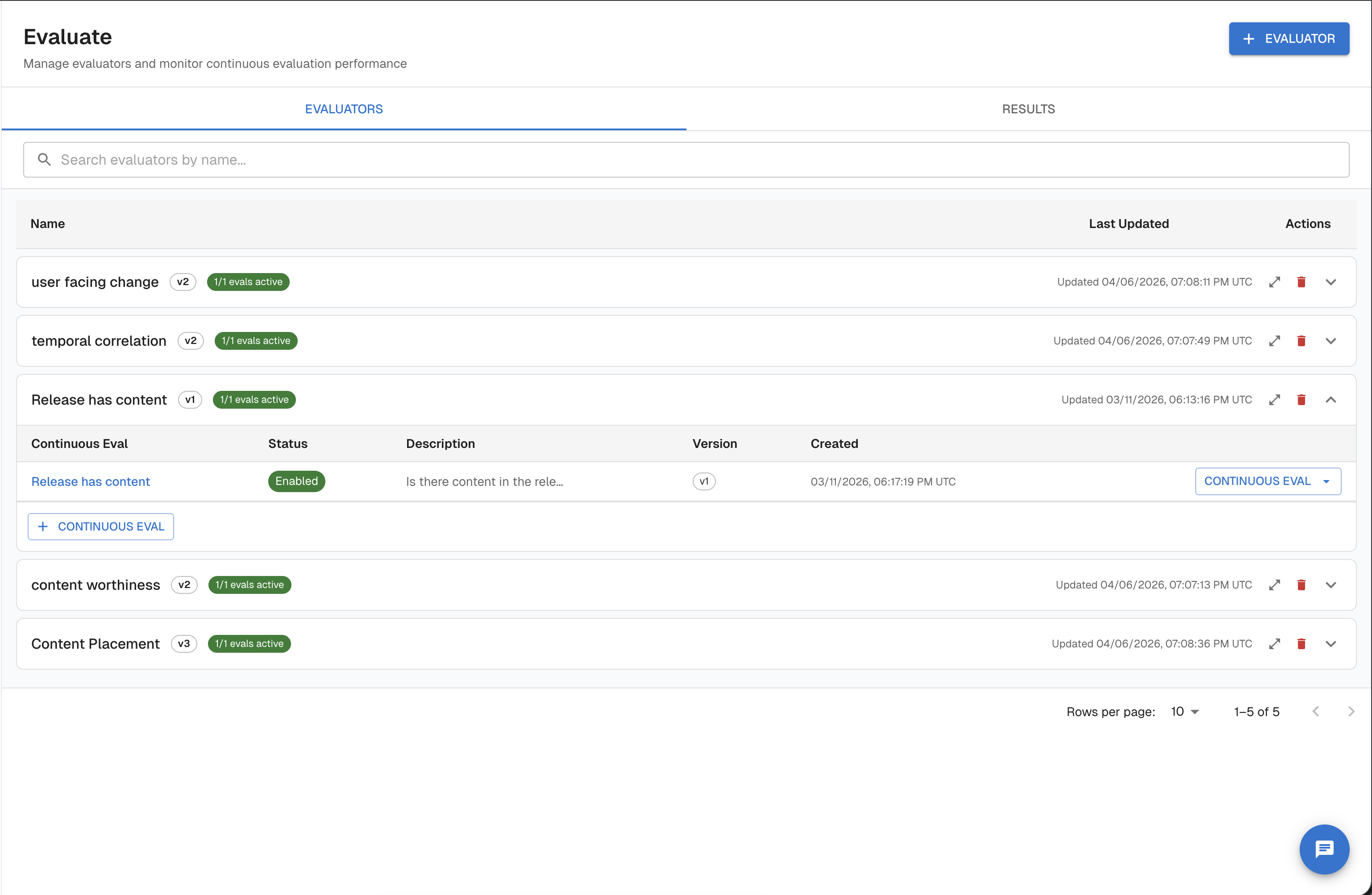
Click + New Evaluator to open the evaluator creation form.
Step 2 — Write your judge prompt
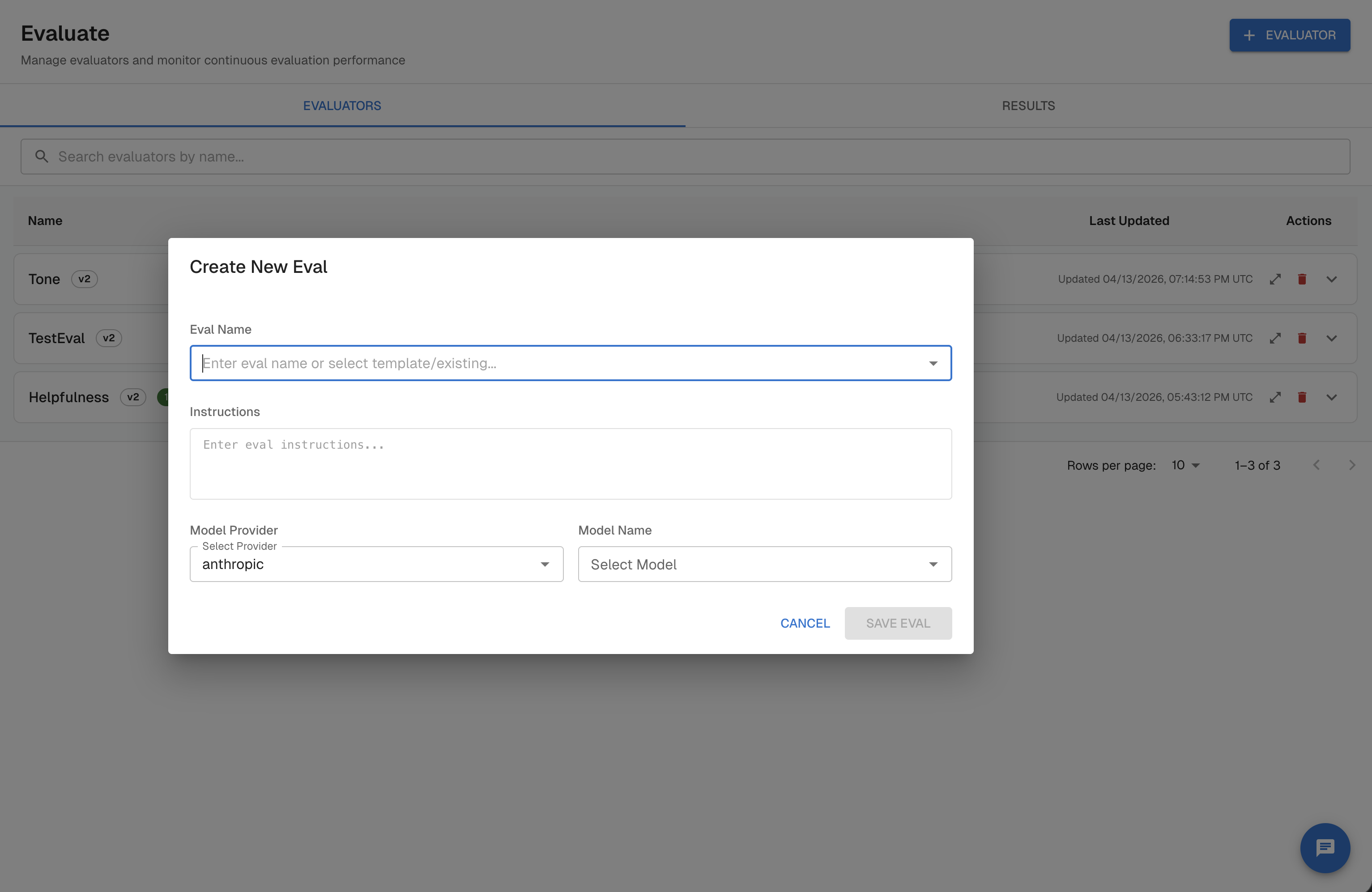
Your judge prompt is a Jinja-style template. Use double-curly-brace syntax to reference variables that Arthur will populate from your trace spans via Transforms.
A well-structured judge prompt has three parts:
- Role and task — tell the judge what it is evaluating and why
- Rubric — define what each score level means
- Output format — instruct the judge to return a structured score
Example: Response Relevance Evaluator
You are an expert evaluator assessing the relevance of an AI assistant's response to a user's question.

User question:
{{ input }}

AI response:
{{ output }}

Score the response on a scale of 1 to 5 using the following rubric:

5 - Fully relevant: The response directly and completely addresses the user's question.
4 - Mostly relevant: The response addresses the main question with minor tangents.
3 - Partially relevant: The response addresses some aspects but misses key parts of the question.
2 - Mostly irrelevant: The response touches on the topic but does not answer the question.
1 - Irrelevant: The response does not address the user's question at all.

Respond with a JSON object in this exact format:
{
  "score": <integer 1-5>,
  "reasoning": "<one sentence explanation>"
}
Tip: Always instruct the judge to return structured output (JSON). Arthur parses the
scorefield automatically. Thereasoningfield is stored alongside the score and is visible in the trace detail view — it's invaluable for debugging unexpected scores.
Step 4 — Select the judge model
Choose the LLM that will act as the judge. Arthur supports:
- OpenAI models (GPT-4o, GPT-4o-mini, GPT-4-turbo)
- Anthropic models (Claude 3.5 Sonnet, Claude 3 Haiku)
- Custom endpoints (via your workspace's model provider configuration)
For most evaluation tasks, GPT-4o-mini offers a good balance of quality and cost. Use GPT-4o or Claude 3.5 Sonnet for high-stakes evaluations like hallucination detection.
Step 5 — Save the evaluator
Click Save Evaluator. The evaluator is now available to attach to continuous evaluations and experiments.
Use Built-In Evaluator Templates
Arthur ships with production-tested evaluators for the most common LLM quality and safety dimensions. These use optimized prompts developed and validated by the Arthur team — you don't need to write the judge prompt yourself.
Using a built-in template
When creating an evaluator (see Create a Custom LLM Evaluator), the evaluator type dropdown includes all built-in templates. Selecting one pre-fills the judge prompt and required variables — you only need to map the variables to your Transforms and set a pass threshold.
LLM evaluators (require a judge model and use natural language rubrics):
| Evaluator name | What it measures | Variables required |
|---|---|---|
Answer Relevance | Whether the response addresses the user's question | query, response |
Answer Correctness | Factual accuracy of the response against a reference | query, response, reference |
Context Precision | Whether retrieved context is relevant to the query | query, context |
Context Recall | Whether retrieved context covers the answer | response, context |
Aspect Critic | Whether the response satisfies a specific dimension | query, response, aspect definition |
Goal Accuracy | Whether the agent achieved its stated goal | query, response |
SQL Semantic Equivalence | Whether two SQL queries are semantically equivalent | query, reference |
Topic Adherence Classification | Whether the response stays on topic | query, response |
Hedging Classification | Whether the response hedges appropriately | response |
Assistant Compliance Classification | Whether the assistant followed instructions | query, response |
Evenhandedness Classification | Whether the response is balanced and unbiased | response |
Topic Adherence Refusal | Whether the assistant correctly refuses off-topic requests | query, response |
When to use built-in vs. custom
- Use built-in LLM templates as a starting point for common quality dimensions — the prompts are optimized and save you iteration time.
- Use built-in ML evaluators (PII, Toxicity, Prompt Injection) for safety checks — they use dedicated models, not LLM prompts, and are faster and cheaper to run at scale.
- Use custom evaluators for domain-specific quality dimensions: "Does this response follow our brand voice?", "Is the SQL query syntactically valid?", "Does the response cite sources correctly?"
Run Evaluations on Your Traces
Once your evaluator is created, you have two ways to run it:
Option A — Continuous evaluation (recommended for production)
Attach the evaluator to a Continuous Evaluation rule. Arthur will automatically score every new trace that matches your filter criteria as it arrives.
See the Continuous Evaluations guide for full setup instructions. The short version:
- Go to Evaluate
- Expand the evaluator you have chosen.
- Click + New Continuous Eval
- Set the Name, the Description and the Transformer.
- Save — evaluations begin immediately on incoming traces
Option B — Test Runs (useful for validating your evaluator)
Before enabling an evaluator continuously, use Test Runs to score a small batch of traces manually and verify the evaluator is behaving as expected. Test Runs are scoped to a continuous eval and their results are stored separately — they don't affect production scores.
- Open your continuous eval and click Test
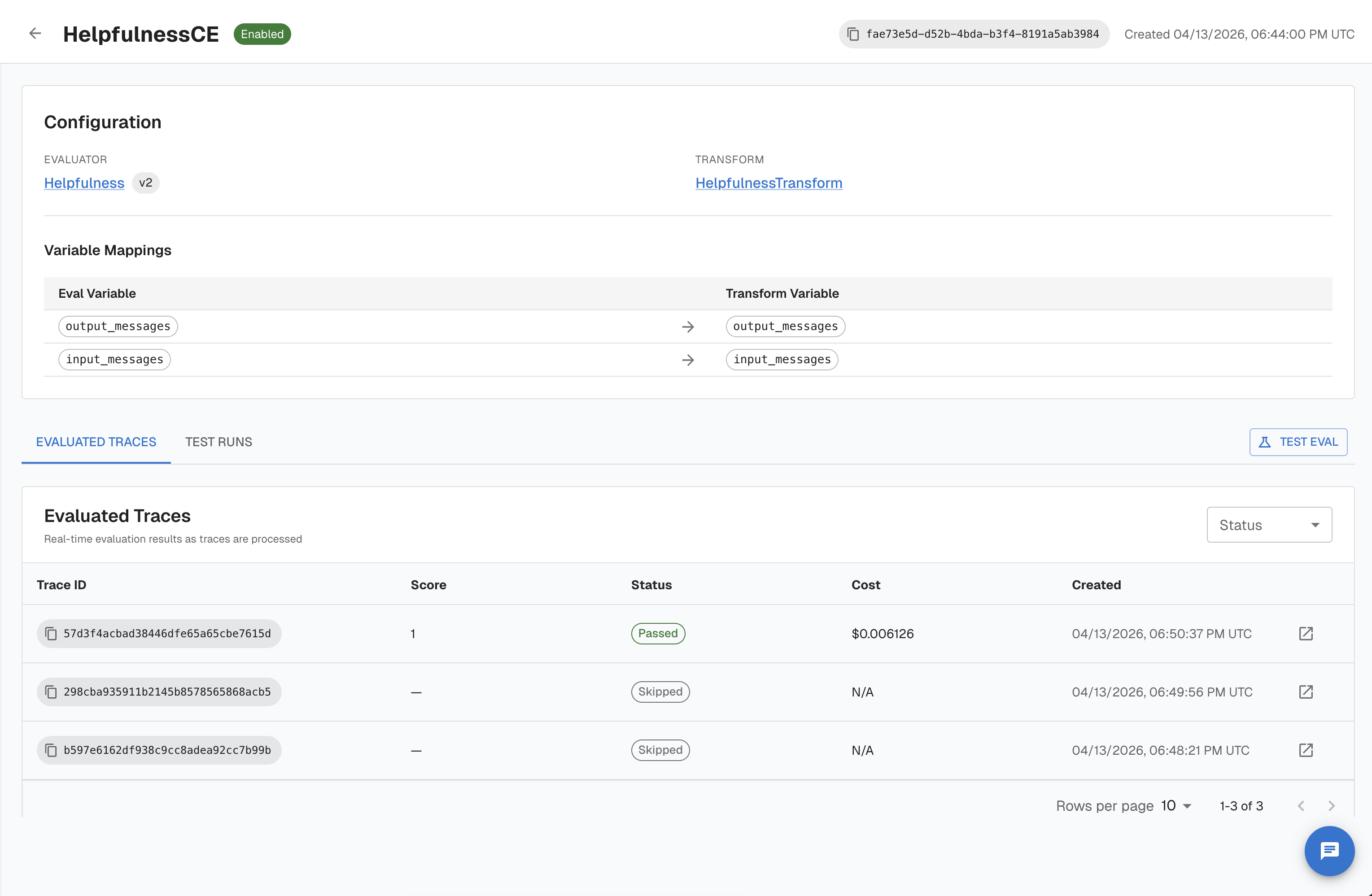
- Paste up to 50 trace IDs (one per line or comma-separated)
- Click Run Test — Arthur scores each trace and shows per-trace scores, reasoning, and pass/fail status
Test Runs are also available via API:
# Create a test run against up to 50 trace IDs
test_run = client.continuous_evals.create_test_run(
    eval_id="your-eval-id",
    trace_ids=[
        "trace-abc123",
        "trace-def456",
        "trace-ghi789",
    ],
)

# Poll for completion
import time
while test_run.status == "running":
    time.sleep(2)
    test_run = client.continuous_evals.get_test_run(test_run.id)

# Fetch results
results = client.continuous_evals.get_test_run_results(test_run.id)
for result in results:
    print(f"Trace {result.trace_id}: score={result.score}, pass={result.passed}")
    print(f"  Reasoning: {result.reason}")
# Create a test run
curl -X POST https://your-arthur-instance.com/api/v1/continuous_evals/{eval_id}/test_runs \
-H "Content-Type: application/json" \
-H "Authorization: Bearer YOUR_API_KEY" \
-d '{"trace_ids": ["trace-abc123", "trace-def456", "trace-ghi789"]}'
# Fetch results
curl https://your-arthur-instance.com/api/v1/continuous_evals/test_runs/{test_run_id}/results \
-H "Authorization: Bearer YOUR_API_KEY"Interpret Results
After evaluations run, scores appear in two places: the Evaluate Results dashboard and the individual trace detail view.
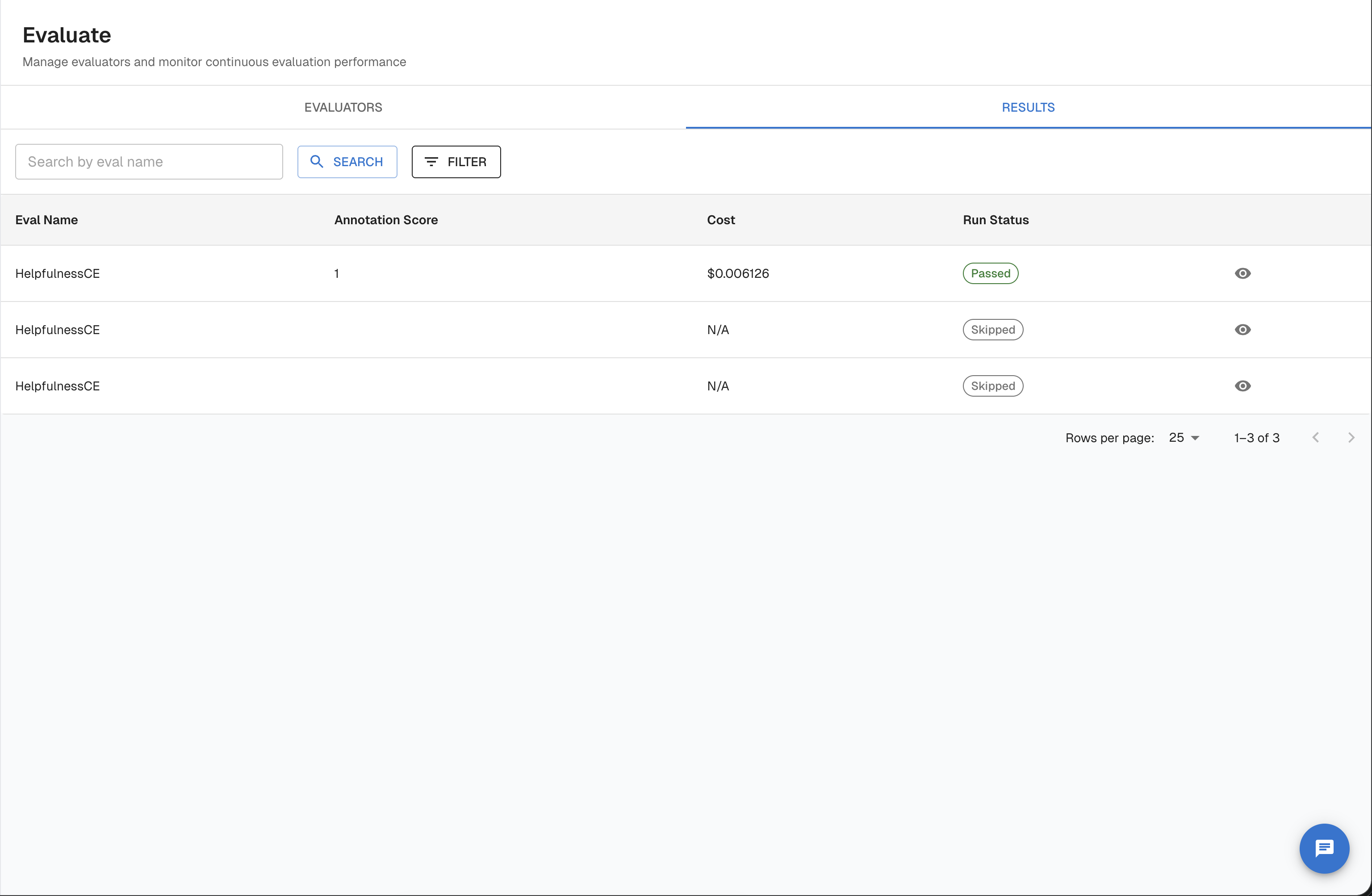
Dashboard-level metrics
The Evaluate Results view shows aggregate statistics across all evaluated traces:
| Metric | Description |
|---|---|
| Pass rate | Percentage of traces that met or exceeded your pass threshold |
| Average score | Mean score across all evaluated traces in the time window |
| Score distribution | Histogram of scores — useful for spotting bimodal distributions |
| Fail rate over time | Time-series chart — watch for regressions after deployments |
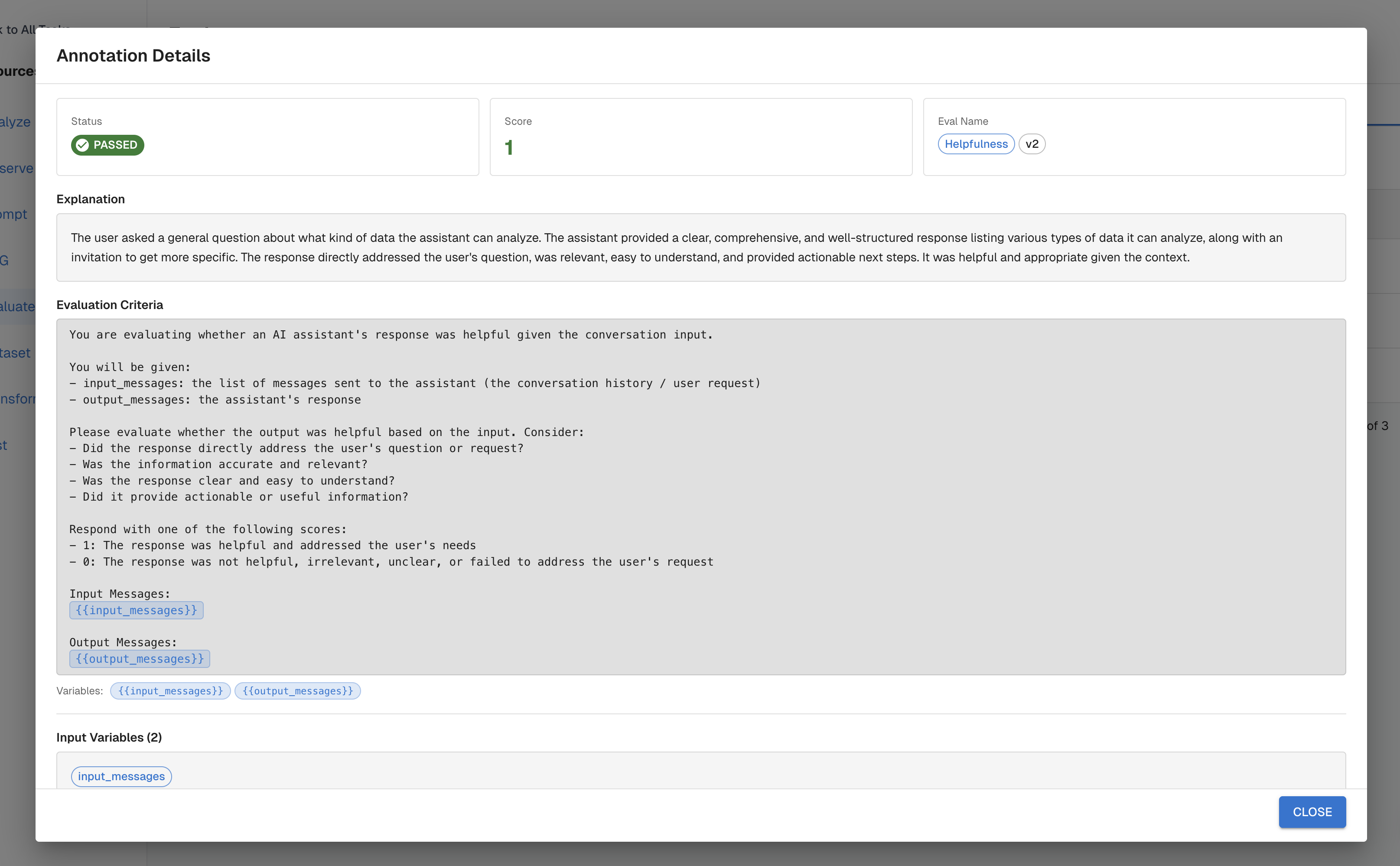
Trace-level detail
Click any trace to see:
- The rendered judge prompt — exactly what was sent to the judge model
- The raw judge response — the full JSON including reasoning
- The extracted score and pass/fail classification
- The variable values that were substituted (input, output, context)
This trace-level transparency is critical for debugging. If a score looks wrong, the rendered prompt and reasoning tell you exactly why the judge scored it that way — and whether the problem is in your prompt, your Transforms, or your agent's output.
Connecting scores to alerts
If your pass rate drops below a threshold you define, Arthur can fire an alert. Configure this in Alerts → Alert Rules. For example:
- Alert when 7-day rolling pass rate for "Hallucination Check" drops below 90%
- Alert when any single trace scores 1 on "Response Relevance"
See the Alert Rules guide for configuration details.
Next Steps
You now have a working LLM evaluator producing scores on your traces. Here's where to go next:
| Goal | Guide |
|---|---|
| Understand how variables get into your prompt | Transforms — map trace span attributes to evaluator variables |
| Automatically score all production traffic | Continuous Evaluations — attach your evaluator to a continuous eval rule |
| Compare prompt variants using eval scores | Experiments — run A/B tests and use evaluator scores as the comparison metric |
| Set up alerts on pass rate drops | Alert Rules — configure threshold-based alerts on evaluator metrics |
| Evaluate retrieval quality in RAG pipelines | RAG Evaluation — run Context Precision, Context Recall, and Answer Correctness evaluators on your retrieval results |
Recommended next step: If you're running in production, set up a Continuous Evaluation rule so every trace is scored automatically. If you're still in development, run on-demand evaluations against a representative sample of traces to calibrate your pass threshold before going live.
Updated 5 months ago